Using Dev Containers
Create consistent dev environments with VS Code Dev Containers and Docker. Setup tips, gotchas, and a starter template to get productive fast.
If you work on more than one technology stack and/or if you have multiple team members working on one project, Dev Containers in VS Code can really help. Help what? Well, there are a few issues that are common:
- Environment Drift: Different developers have different versions of tools, libraries, or even operating systems.
- Onboarding Friction: New team members struggle to set up their local environments, leading to wasted time and frustration.
- Security Risks: Installing tools globally can lead to conflicts and security vulnerabilities, especially if different versions are used across machines.
So, Dev Containers in VS Code allow you to define a consistent, isolated development environment using Docker. This means that everyone on the team can work in the same environment, regardless of their local setup. That means that every developer works out of a consistent, known-good environment - right after doing a git clone of the repository.
This is mostly great, but there are some "gotchas" and nuances too. In this post, I’ll cover the basics of Dev Containers, why they’re useful, and how to get started with a reference implementation that I’ve created.
TL;DR
TL;DR: This post introduces the idea of Dev Containers in VS Code, which allow you to create consistent, isolated development environments using Docker. This helps solve issues like environment drift, onboarding friction, and security risks. The post covers the basics of Dev Containers, their benefits, and provides a reference implementation to help you get started quickly. In short, instead of opening a Git repository from your file system, VS Code spins up a container based on your configuration, and then opens and runs VS Code inside that container. This way, your development environment is consistent across all machines. Open the same repo on Windows, macOS, or Linux and you get exactly the same environment every time.
What Are Dev Containers?
Dev Containers are a way to define a consistent, isolated development environment using Docker, right alongside your codebase. When configured in VS Code, they allow the editor to run inside that containerized environment, so your tools, runtimes, extensions, and shell configurations are all version-controlled and reproducible.
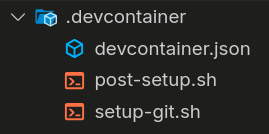
You define everything in a .devcontainer/ directory, typically consisting of a devcontainer.json file (the metadata) and a Dockerfile (your environment definition). VS Code uses this to spin up a container that matches the exact conditions you want without relying on your host OS.
You can use existing, purpose-built container images from: https://github.com/devcontainers/images or you can point to a customer Dockerfile in that that .devcontainer/ directory. This flexibility allows you to create tailored environments for different projects, languages, or frameworks.
For example, this very website - which is a Jekyll-based static site - uses a Dev Container to ensure that the Ruby, Jekyll, and all related dependencies are consistent across development machines. The .devcontainer/ directory contains a devcontainer.json file that specifies the base image and any additional tools or configurations needed. This way, I can git clone this repository on any machine that VS Code runs on, and so long as Docker is installed, I have exactly the same environment on Windows, macOS, and Linux.
You don't don't store or public the container image itself. Instead, you check in this folder into your GitHub repository, and VS Code will build the container in your local machine, and re-open VS Code in that container.
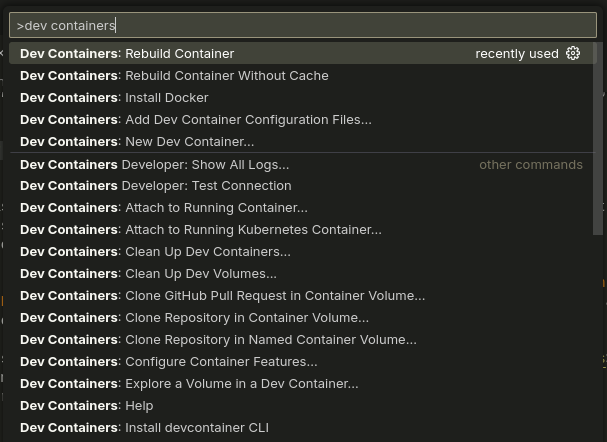
With the "Dev Containers" extension installed, you will see additional options in the Command Palette (Ctrl+Shift+P) for working with Dev Containers. You can create a new container, open an existing one, or even rebuild it if you change the configuration.

Why Use Dev Containers?
There are several reasons why Dev Containers have become a best practice in modern development environments:
1. Consistency and Predictability
Your entire development environment OS, libraries, tools, shell config, even VS Code extensions is defined in code. This eliminates drift between systems. Whether you’re the original developer, a new contributor, or switching machines, the environment remains consistent.
The only requirements is that you workstation have VS Code and Docker installed. That means that your build environment is exactly the same regardless if the host workstation is running Windows, macOS, or Linux.
2. Security and Separation
Dev Containers isolate your tools from your host OS. That means less risk from installing random CLI tools globally, fewer privileged operations on your local machine, and better alignment with security principles like least privilege and immutable infrastructure. For teams working in regulated industries (HIPAA, PCI, etc.), this is a step toward more auditable dev workflows.
3. Improved Onboarding
New team members no longer need to follow a 20-step wiki guide to get set up. They clone the repo, launch the container in VS Code, and they’re ready to contribute. This is especially helpful when supporting multiple projects, stacks, or clients.
4. Cross-Platform Development
Need to build Linux software on Windows, or simulate an Alpine-based deployment target? Dev Containers let you do that seamlessly. They also play nicely with GitHub Codespaces, enabling fully browser-based dev environments that match your local setup.
5. Test-Driven Tooling
With Dev Containers, it becomes trivial to add or test new tools like security linters, CI/CD helpers, or network debugging utilities without modifying your host system. You can version-lock components and frameworks ensuring they behave identically across dev workstations.
6. Versioning Issues
If you are working on multiple projects from your workstation where one project requires a specific version of Node.js for example, and another project requires a different version, that is a recipe for disaster. It's just a matter of time before that causes a problem for one of those projects. With Dev Containers, that takes this completely out of the equation. Each project can have its own container with the exact version of Node.js (or any other tool) that it needs, without affecting other projects.
Key Use Cases
Here are some real-world ways Dev Containers are being used today both in enterprise and indie workflows:
- Security-focused development: Bundle secure linters, license checkers, and vulnerability scanners into every container.
- Platform engineering: Standardize toolchains across teams and enforce security baselines in the dev environment itself.
- Education and demos: Distribute hands-on labs or demo environments that just work no setup required.
- OSS contribution: Clone any repository with a
.devcontainer/setup, and avoid the huge time-suck usually required to contribute.
Dev Containers Shortcomings
While this is a great idea, this is definitely a "batteries not included" situation. For example, you open your repo in this dev container which has your tools. However, inside of your Dev Container, typically running as used vscode, it has no idea what your GitHub credentials are, or what your SSH keys are. So you will need to set those up inside of the Dev Container as well.
This is kind of a big deal because now it's not so turnkey. We need to get our SSH/GPG keys into the container, set our git config, etc.
In this robertsinfosec/dev-containers-template repository, I have included a script that takes care of this. Basically, it maps your local ~/.ssh and ~/.gitconfig to inside of the container, so that you can use your existing SSH keys and Git configuration without having to reconfigure everything. This does account for the different paths on Windows, macOS, and Linux, so it should work seamlessly across platforms.
You MUST address your Git config and SSH keys for this to be a smooth experience. The good news is that there is a pretty decent example in the reference repository discussed in this post.
To me, this should've been part of the Dev Containers experience from the start, because this is so fundamental to the developer experience. But it is what it is, and I have a script that takes care of this for you.
Reference Implementation: Dev Containers Template Repo
For my own reference and to potentially help others adopt this workflow, I’ve published a Dev Containers Template Repository on GitHub.
This repo includes working .devcontainer/ examples for a handful of common tech stacks, each tuned with practical defaults:
- Python: With pipx, Poetry,
bandit,semgrep, and debug tools. - Node.js: Includes
npm audit,eslint, and userland hardening. - .NET: Ready for building legacy enterprise apps or modern Blazor sites, with layered support for package security.
- Go: Lightweight setup for building and testing Go CLI apps.
- General CLI/Shell: For automation projects, SecOps tooling, or just scripting with the right utilities baked in.
Each container setup includes:
- Secure, minimal base images
- Non-root user setups
- Toolchain install scripts (version pinned where appropriate)
- Recommended extensions for VS Code
- Optional scripts for health checks and post-create tasks
This is very much a living repo intended to grow as I explore more specialized containers for lab-based security testing, and compliance-sensitive development environments.
Final Thoughts
For developers and engineers who care about repeatability, tooling hygiene, and secure-by-default development practices, Dev Containers should be part of your toolkit.
If you're maintaining multiple projects or trying to get a handle on complex CI/CD pipelines, they give you a way to unify and simplify the messy parts of setup. If you're leading a team or mentoring junior engineers, they eliminate most of the setup drama and let people focus on learning and contributing.
I’ll continue refining these templates and building new ones that support my own work in API security, vulnerability management, and infrastructure as code.
Check out the repo and try it out:
Happy coding!